Outlook Online Booking
I was the design lead on Outlook online booking, helping small businesses handle bookings, appointments and their work calendar.
Research showed most of them needed it on the go, so we designed mobile first, then carried the changes to desktop so the experience matched across devices. My contract ended before it shipped, so I handed it off to another designer.
- Role
- UI/UX design lead
- Services
- UX researchUX designUI design
- Client
- Microsoft Outlook
- Team
- 1 designer, 1 researcher, 1 product manager
- Platforms
- Mobile and desktop
- Year
- 2014–2015
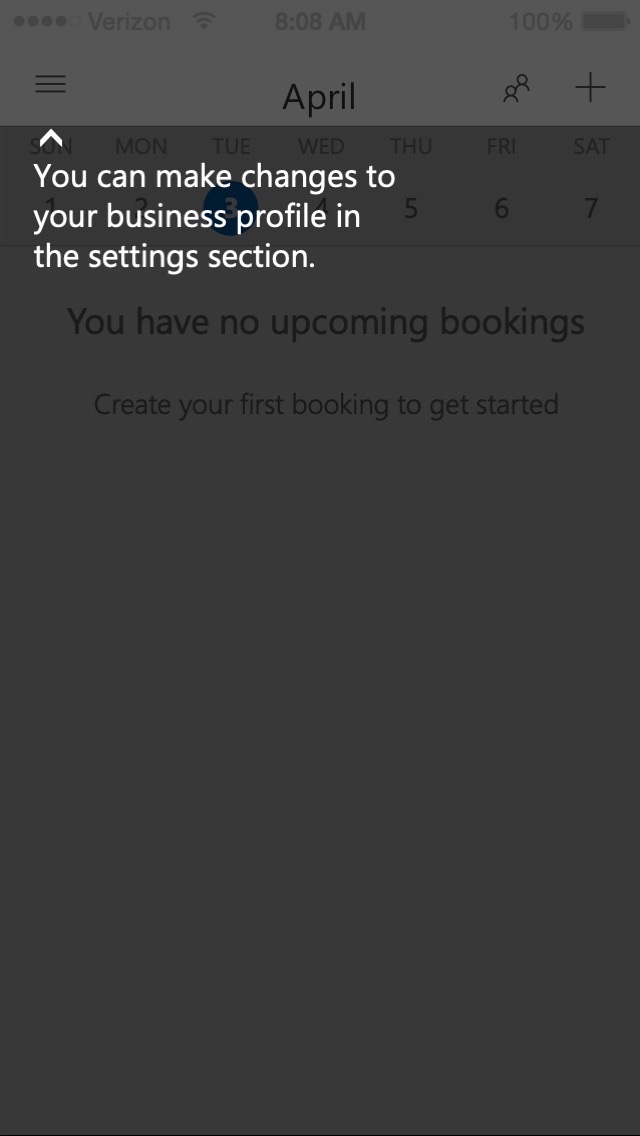
Setting up
Setup walks business owners through everything they need in one clear, simple flow on their phone: a short tour, then a quick setup of their info, hours and services. Tips afterwards point out where to change things later.
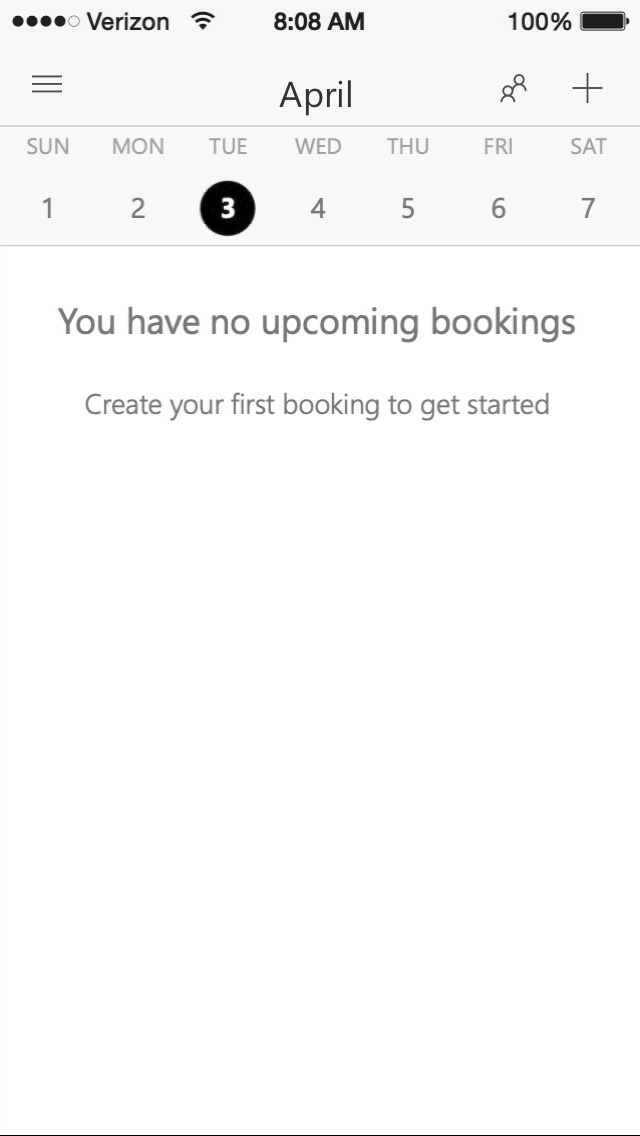
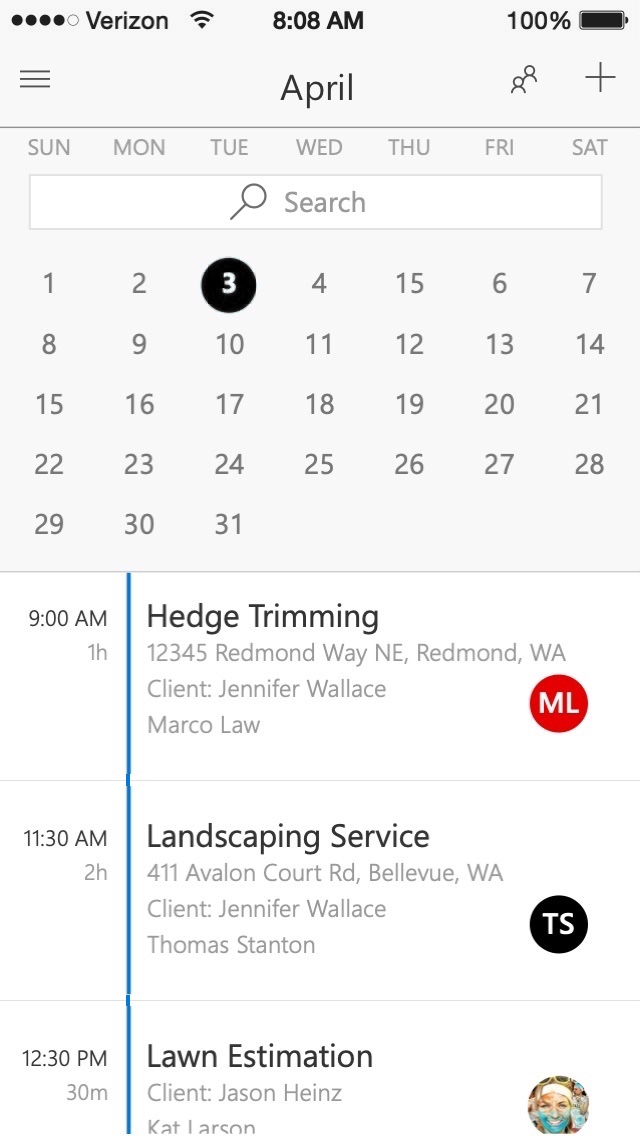
The calendar
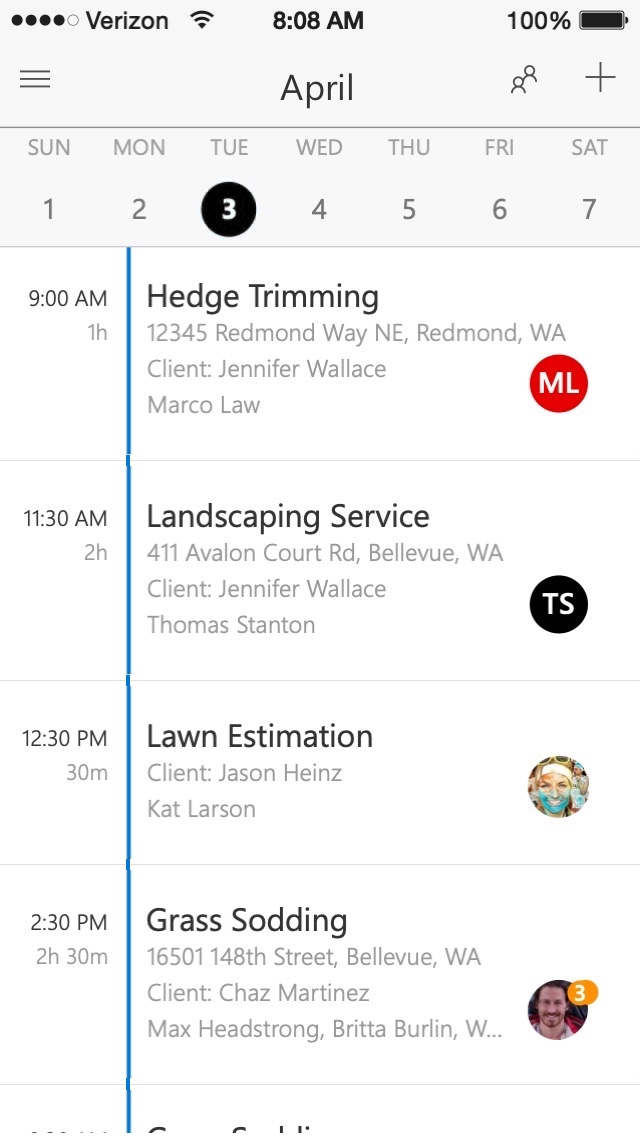
Moving through your bookings, and what you can do from each one: swipe a booking to call, message or get directions to the client.
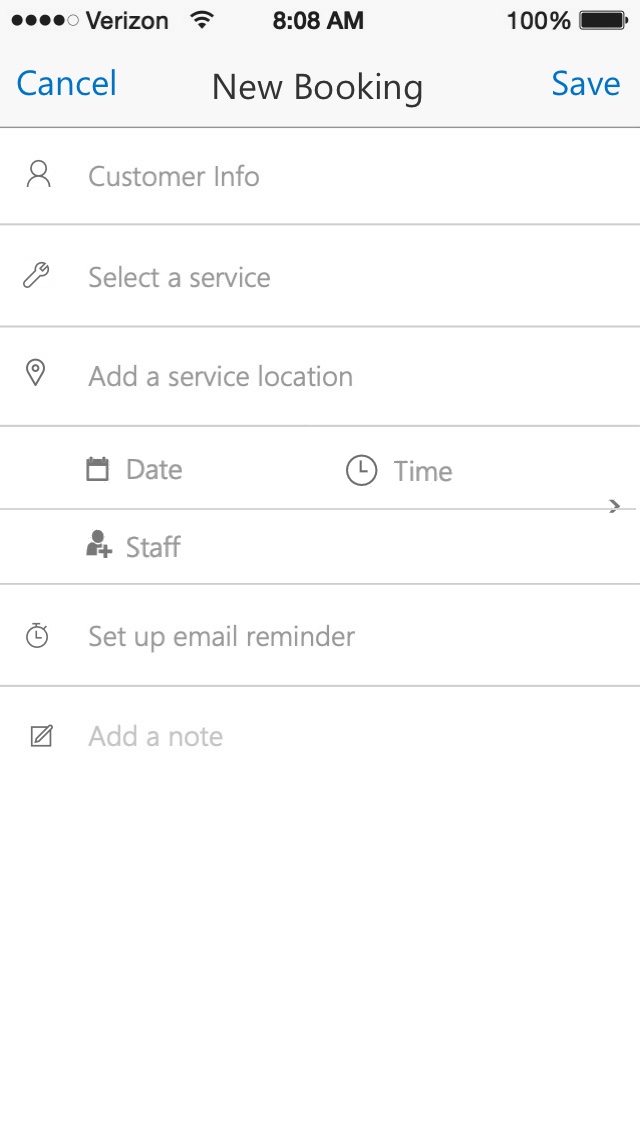
Booking a client
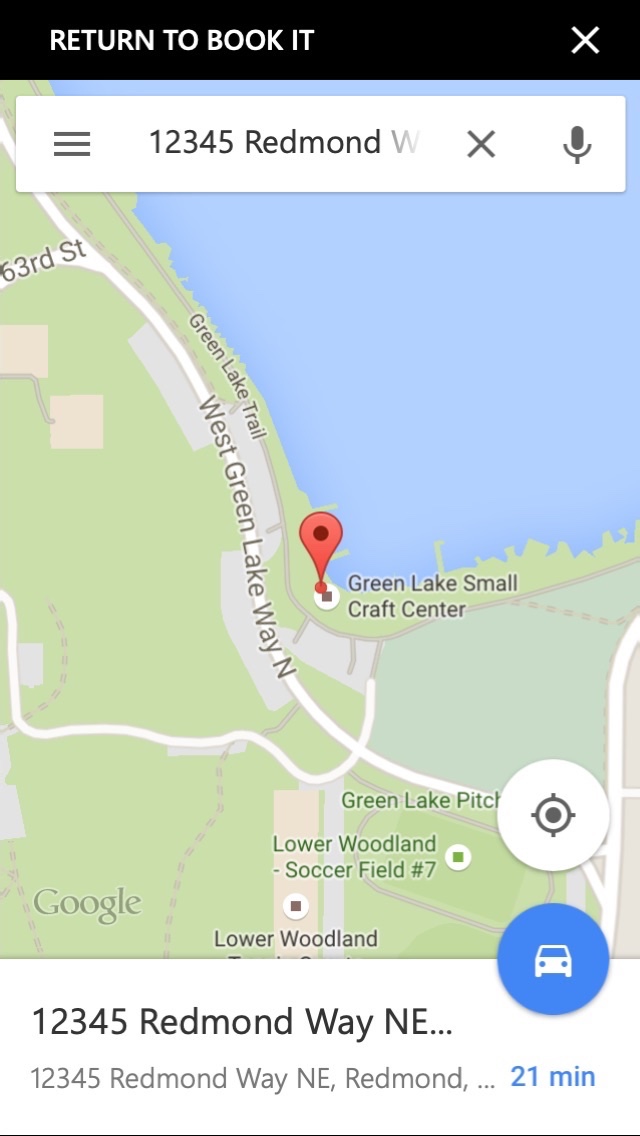
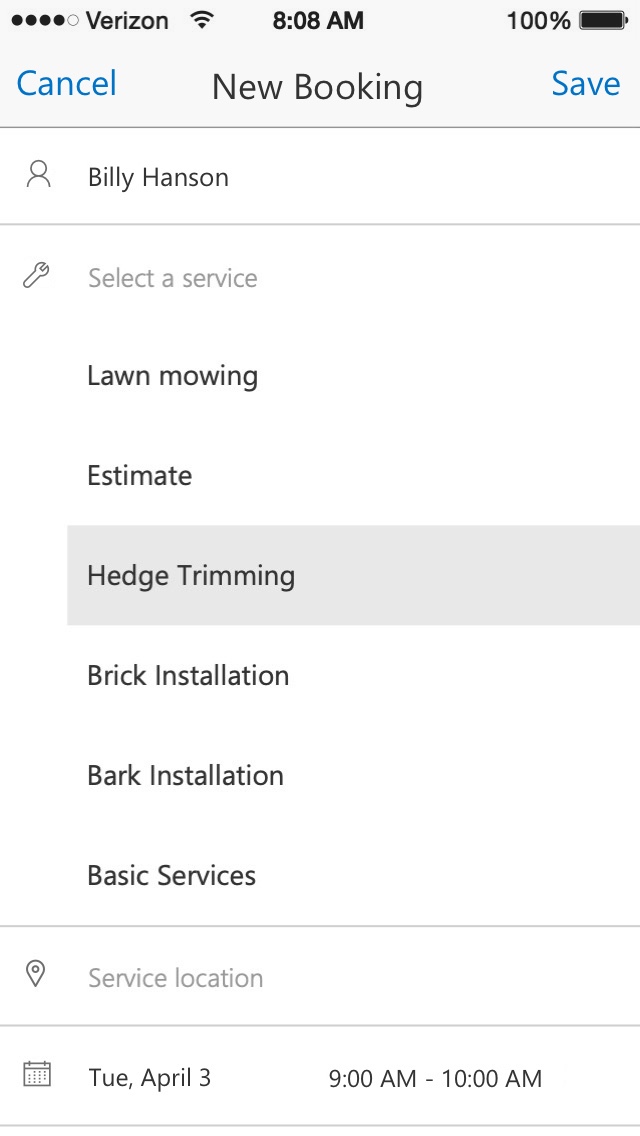
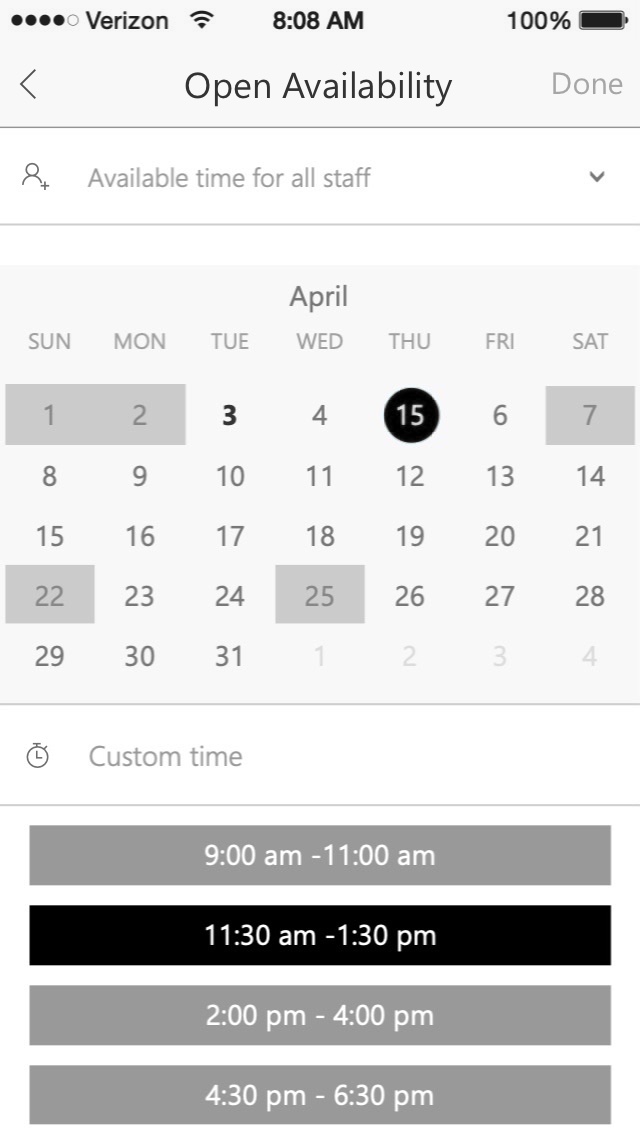
A new booking pulls in the client, the service and where it happens, then shows open availability across staff, so a booking fits the team's real schedule.
Services, hours and staff
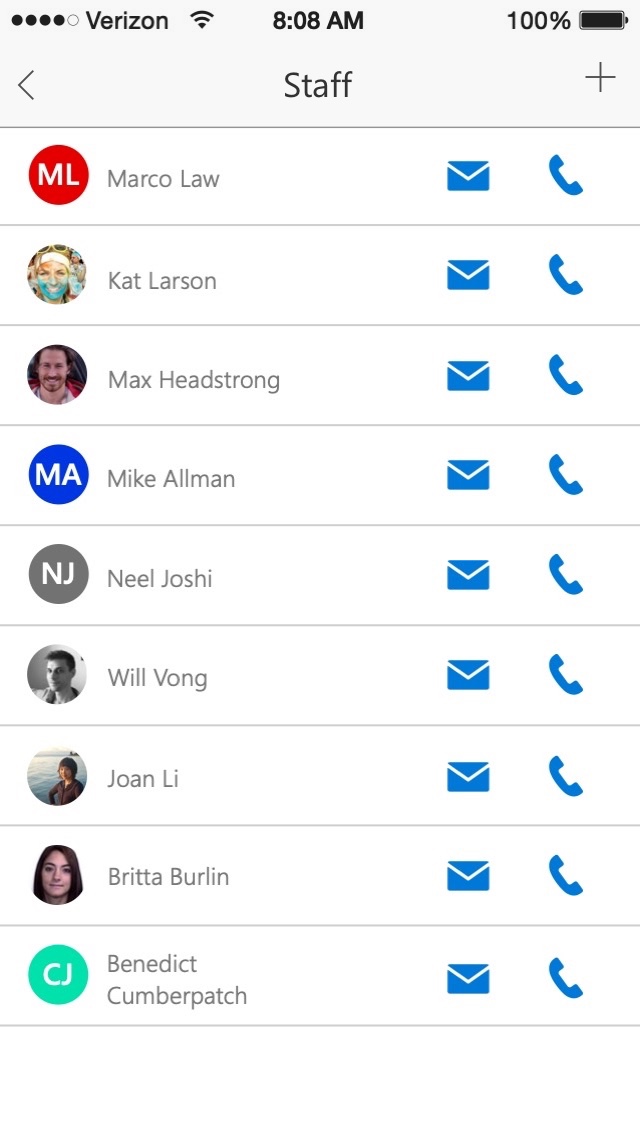
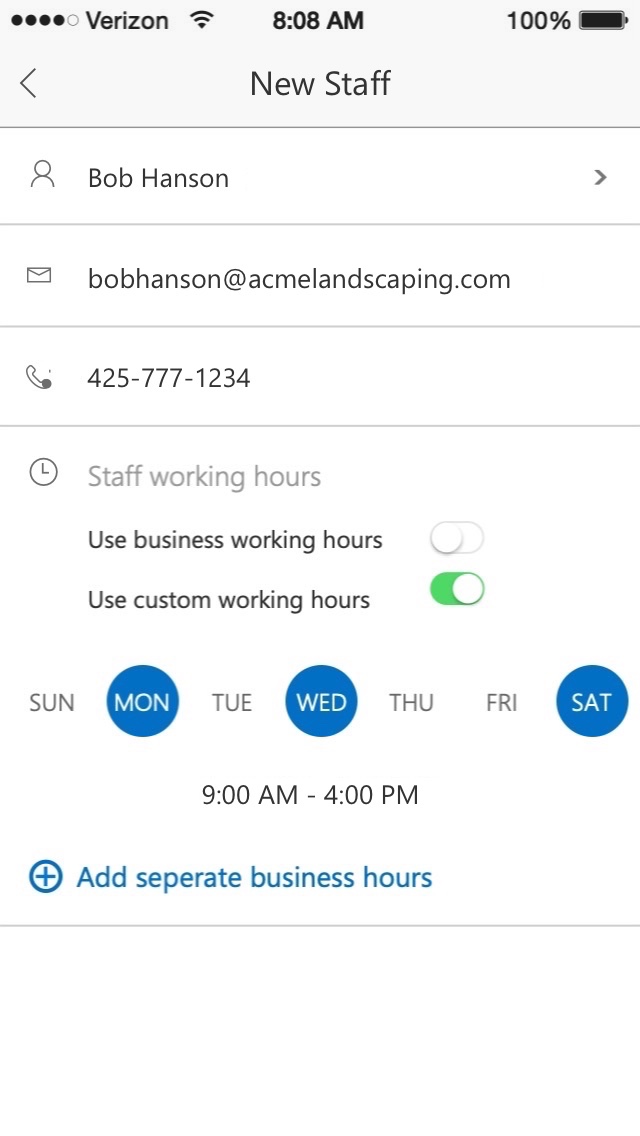
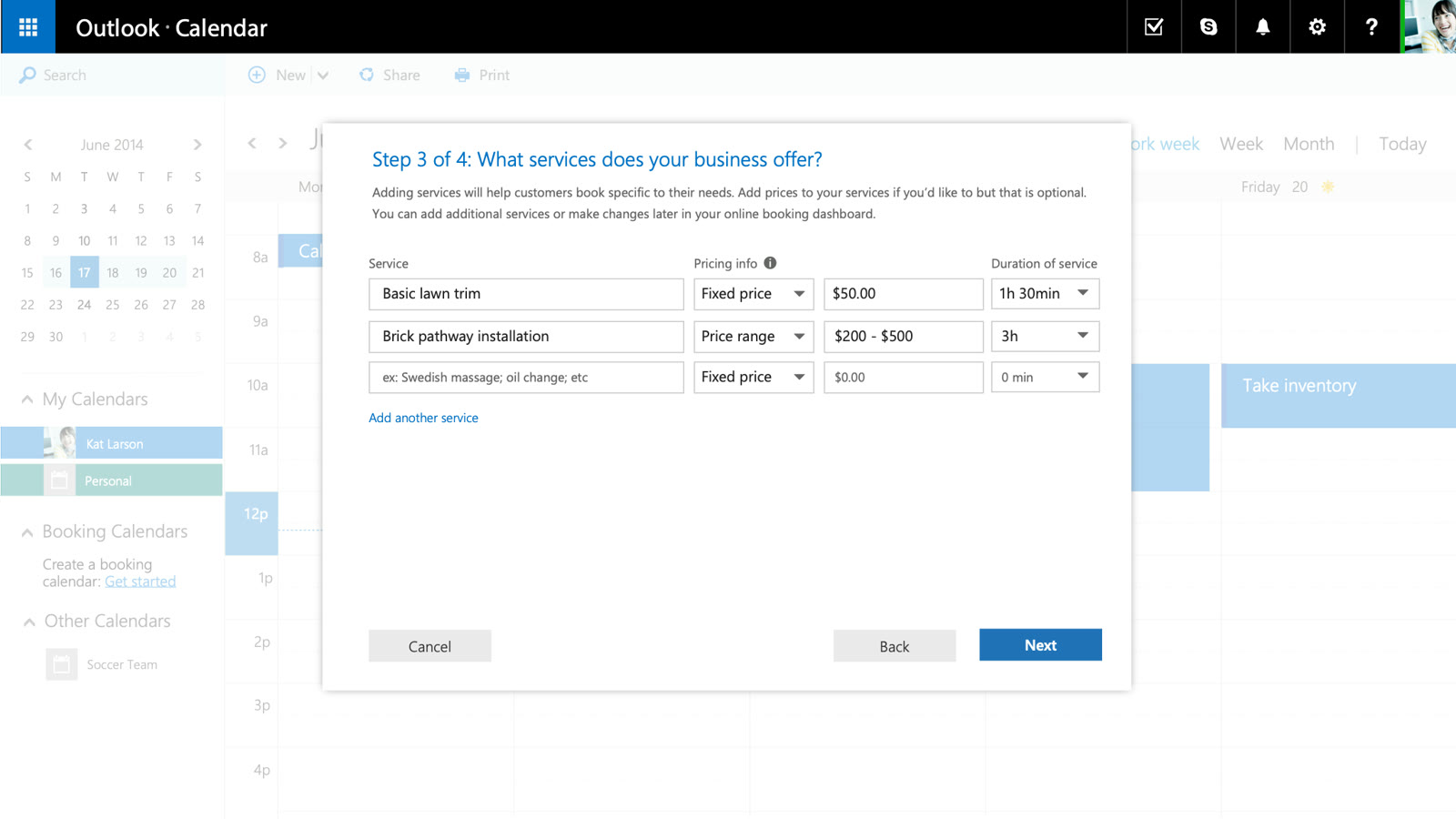
Setting up services is a simple, fluid flow that makes booking easier later: initial reminders, where a service usually takes place, the staff who provide it (so bookings filter to the right people), and notes. Business hours work the same way, day by day, and each staff member can have their own.
Desktop and email
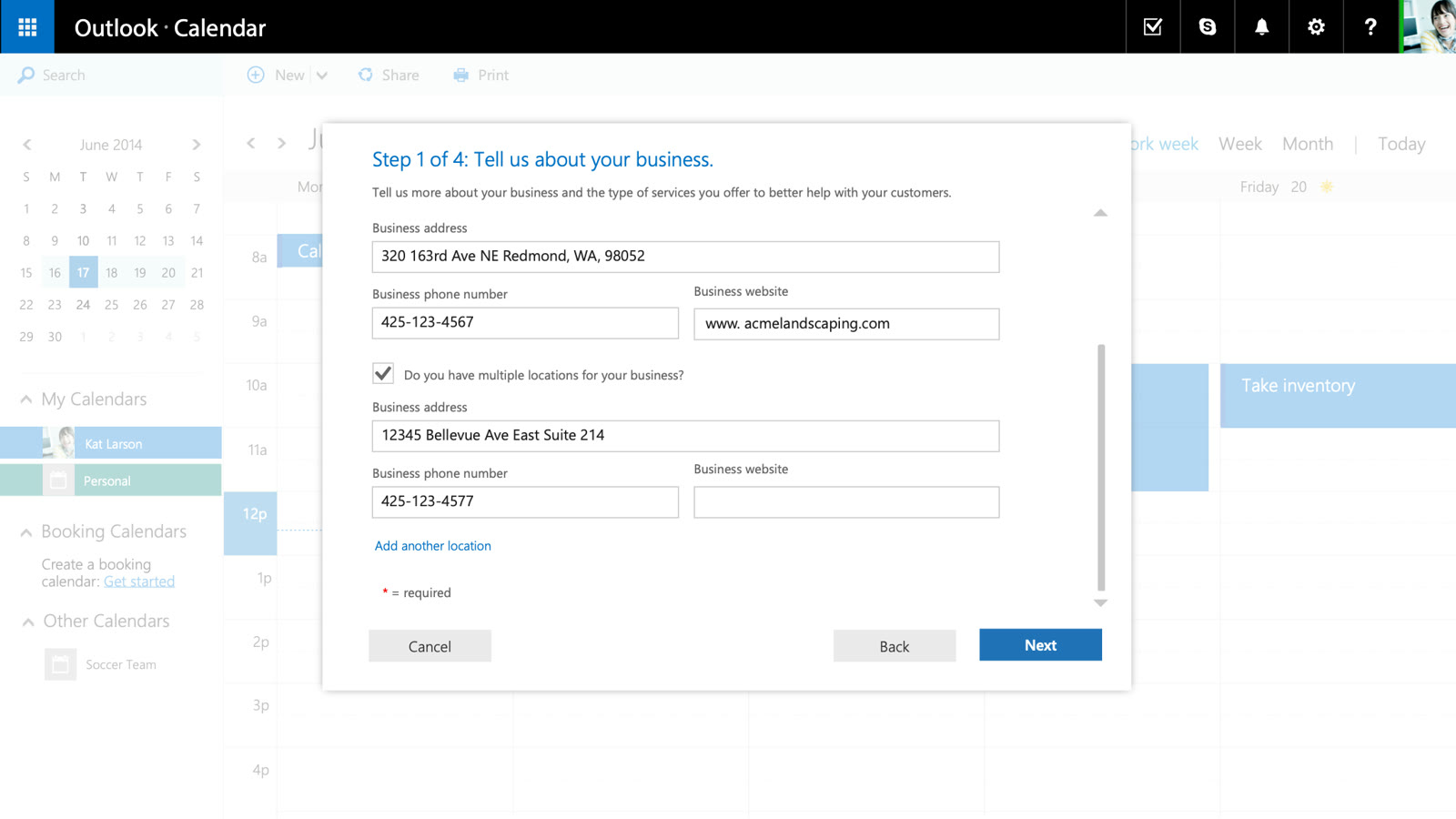
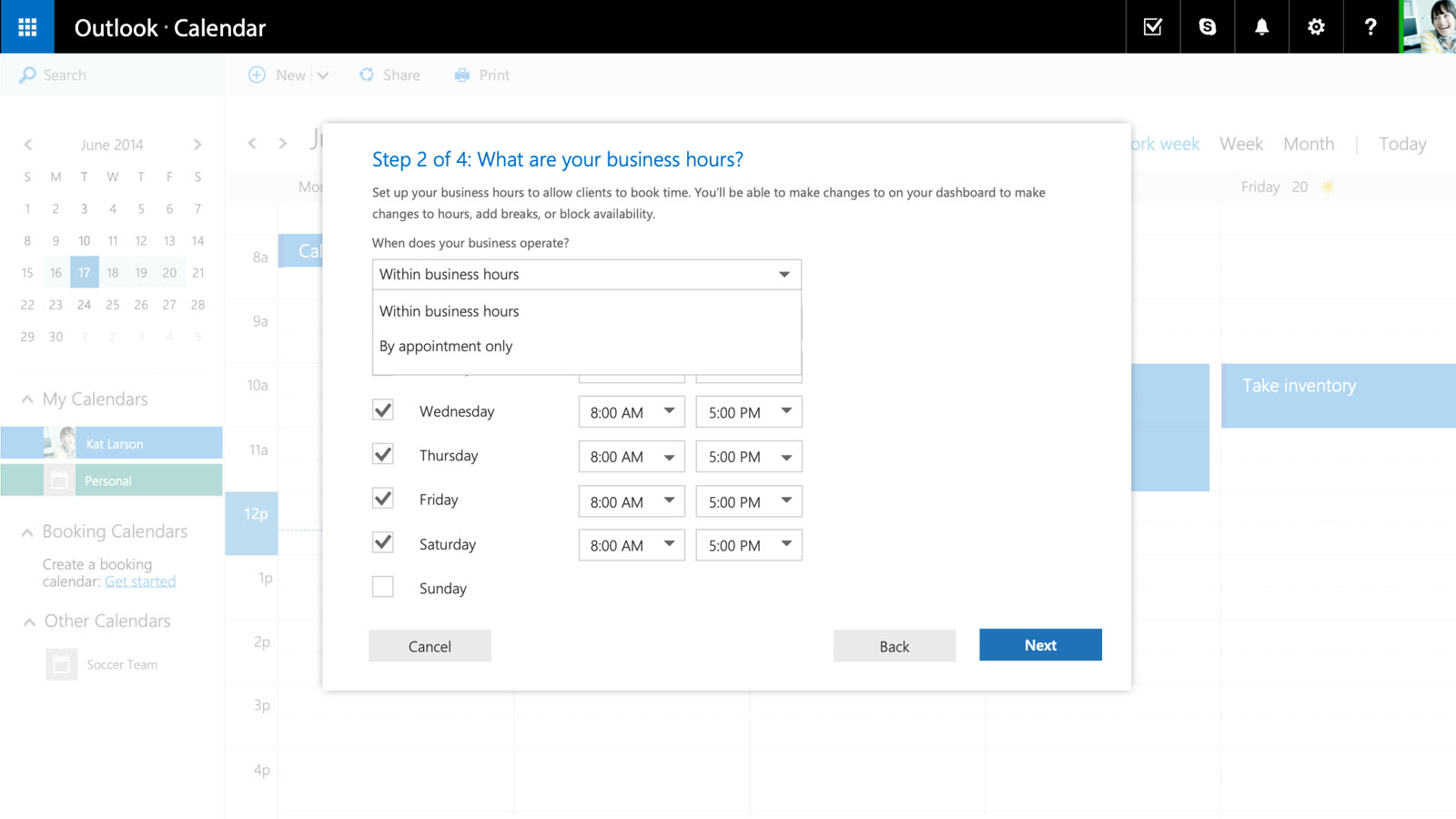
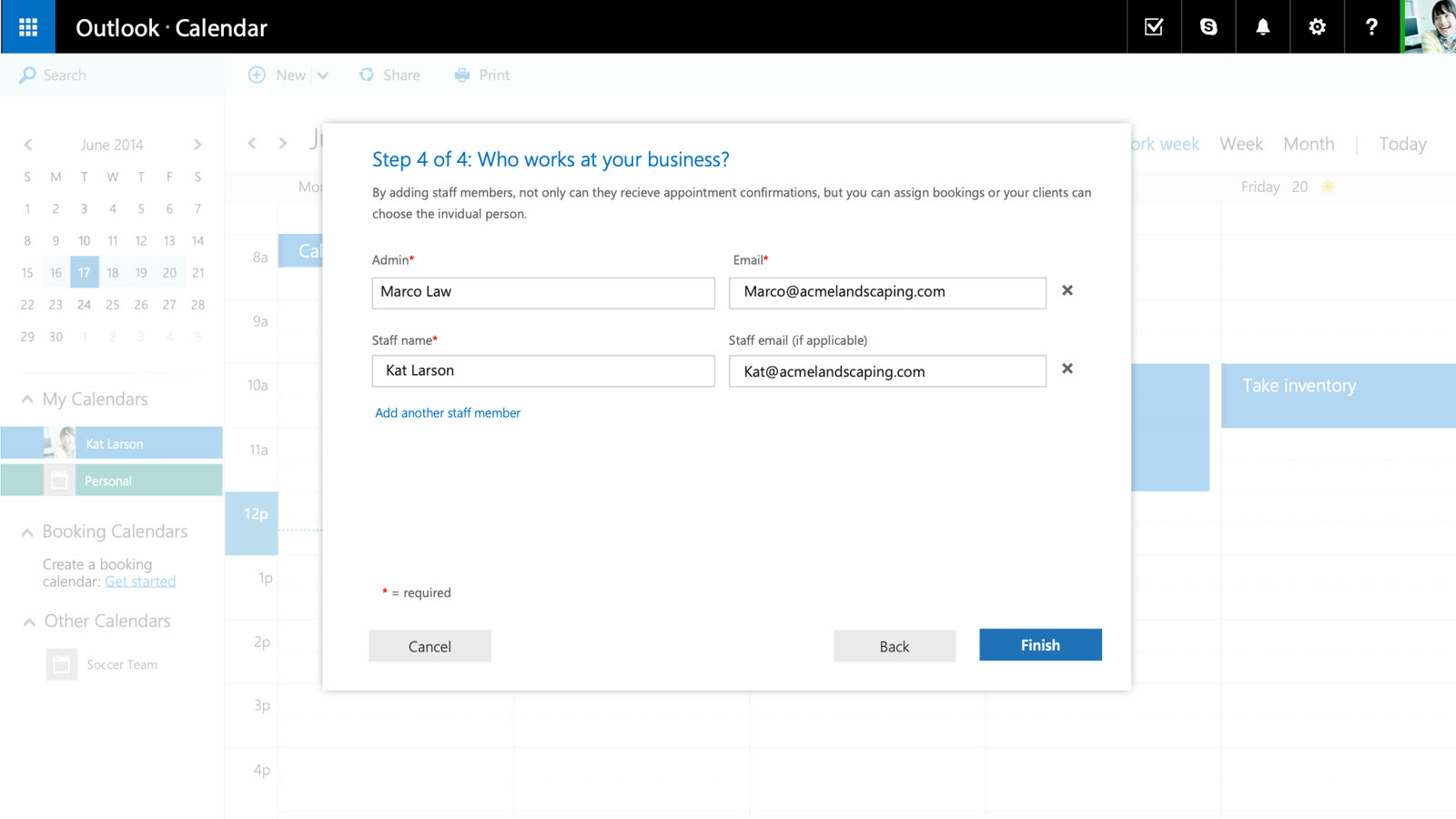
Near the end of my contract, I ported the mobile flows to desktop for the designer taking over. Setup became four steps in Outlook on the web: the business, its hours, its services and its staff.
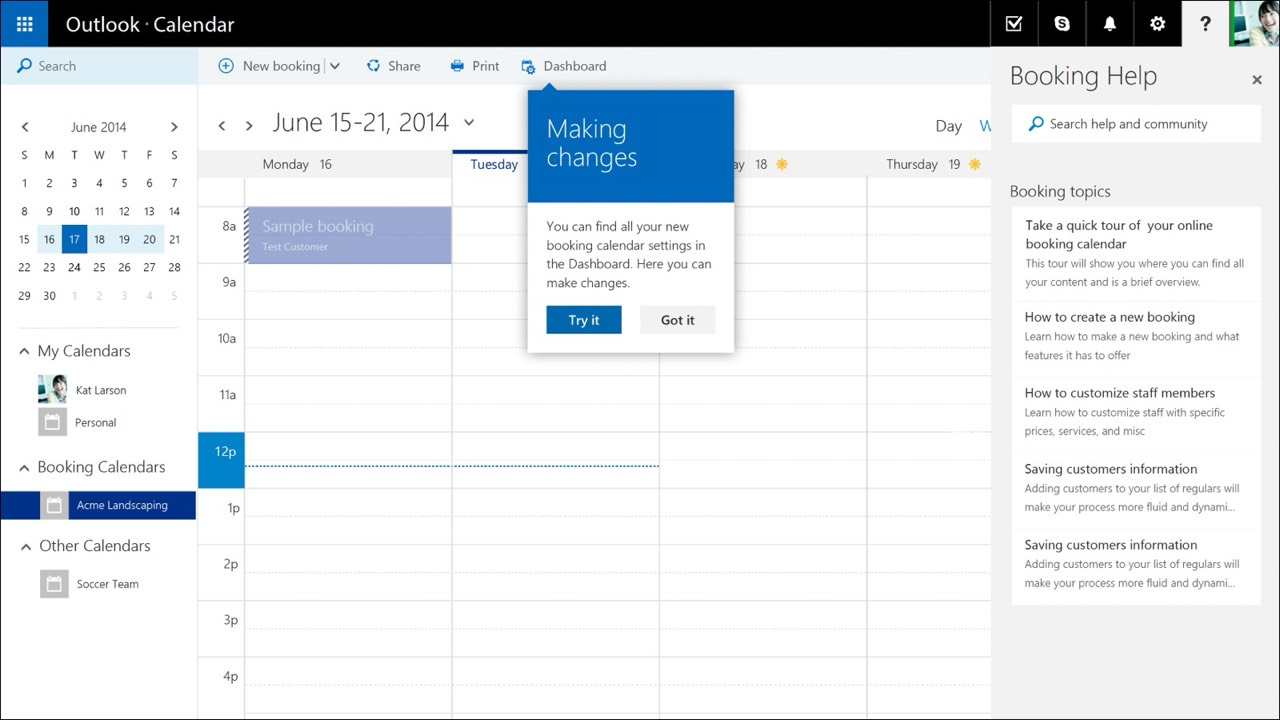
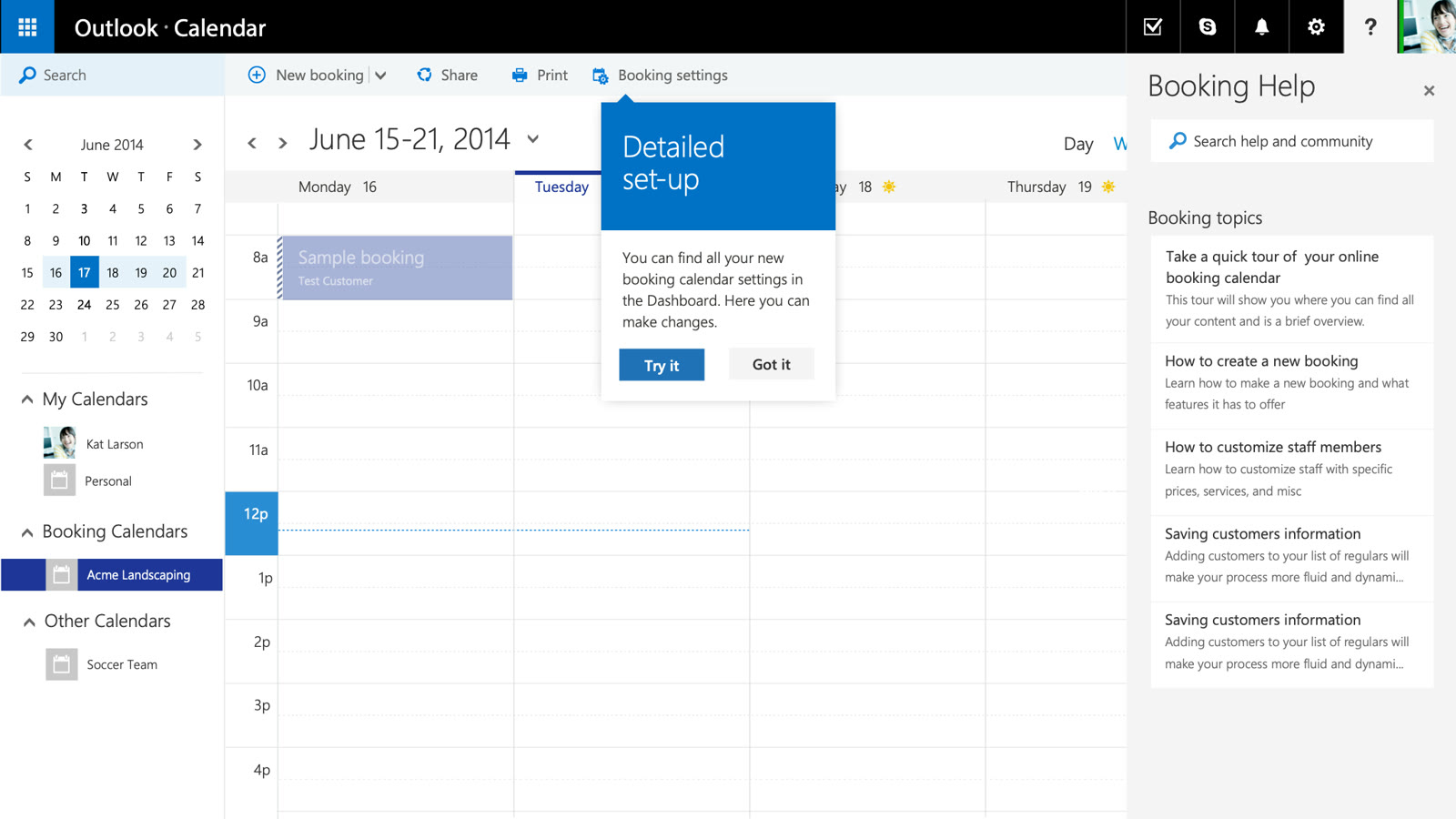
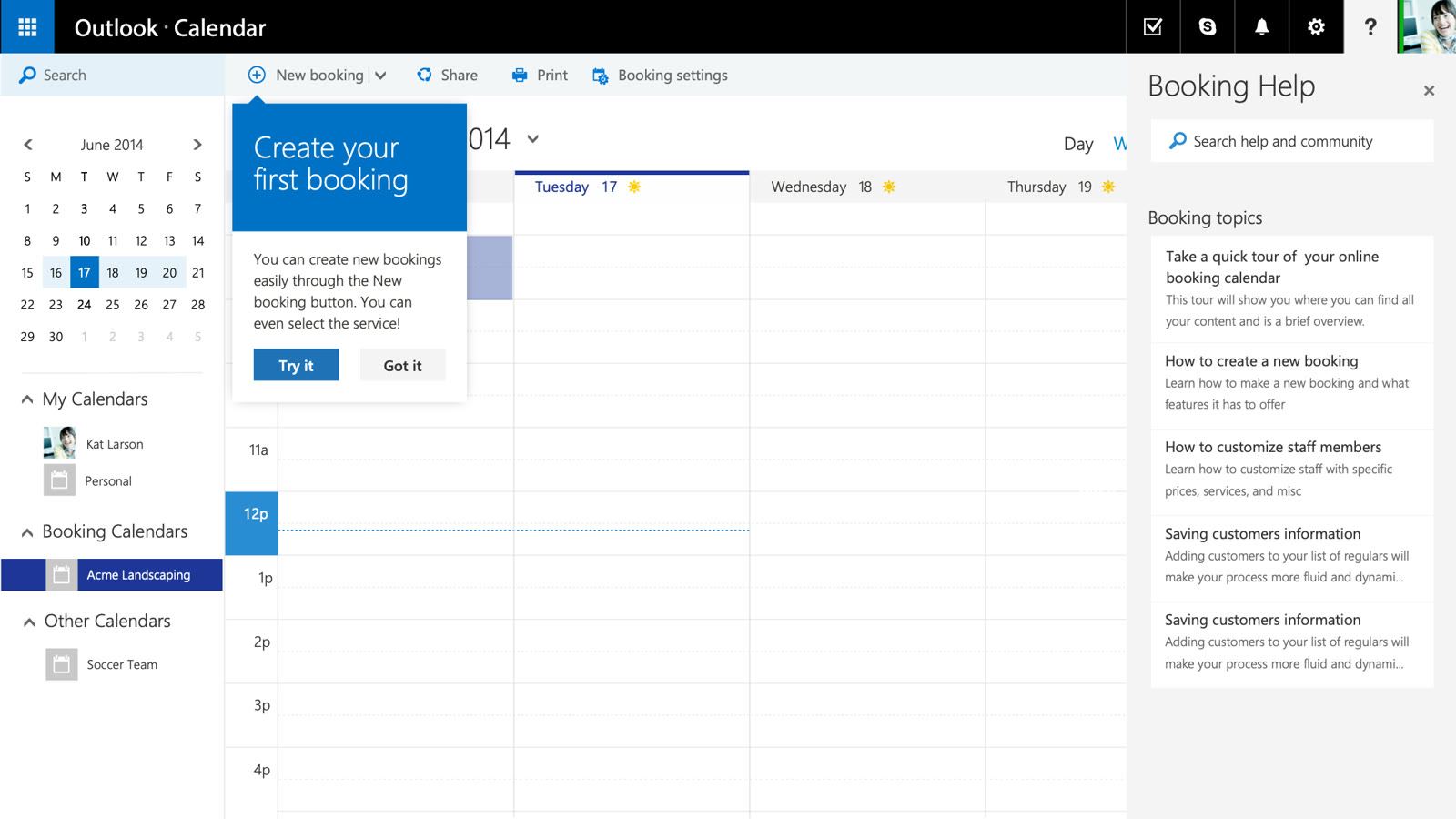
After setup, tips point to the booking settings and to creating the first booking, next to a Booking Help panel.
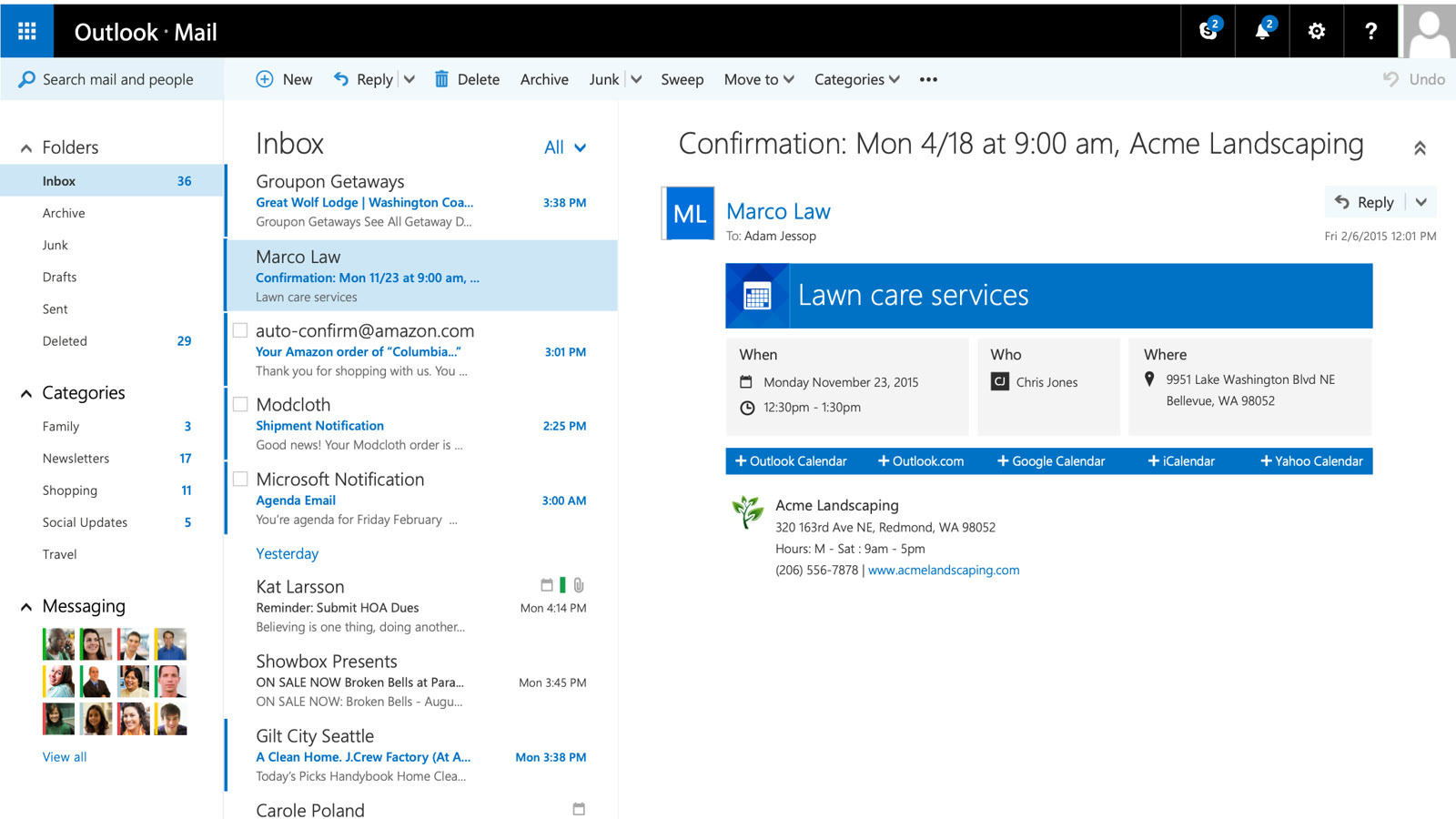
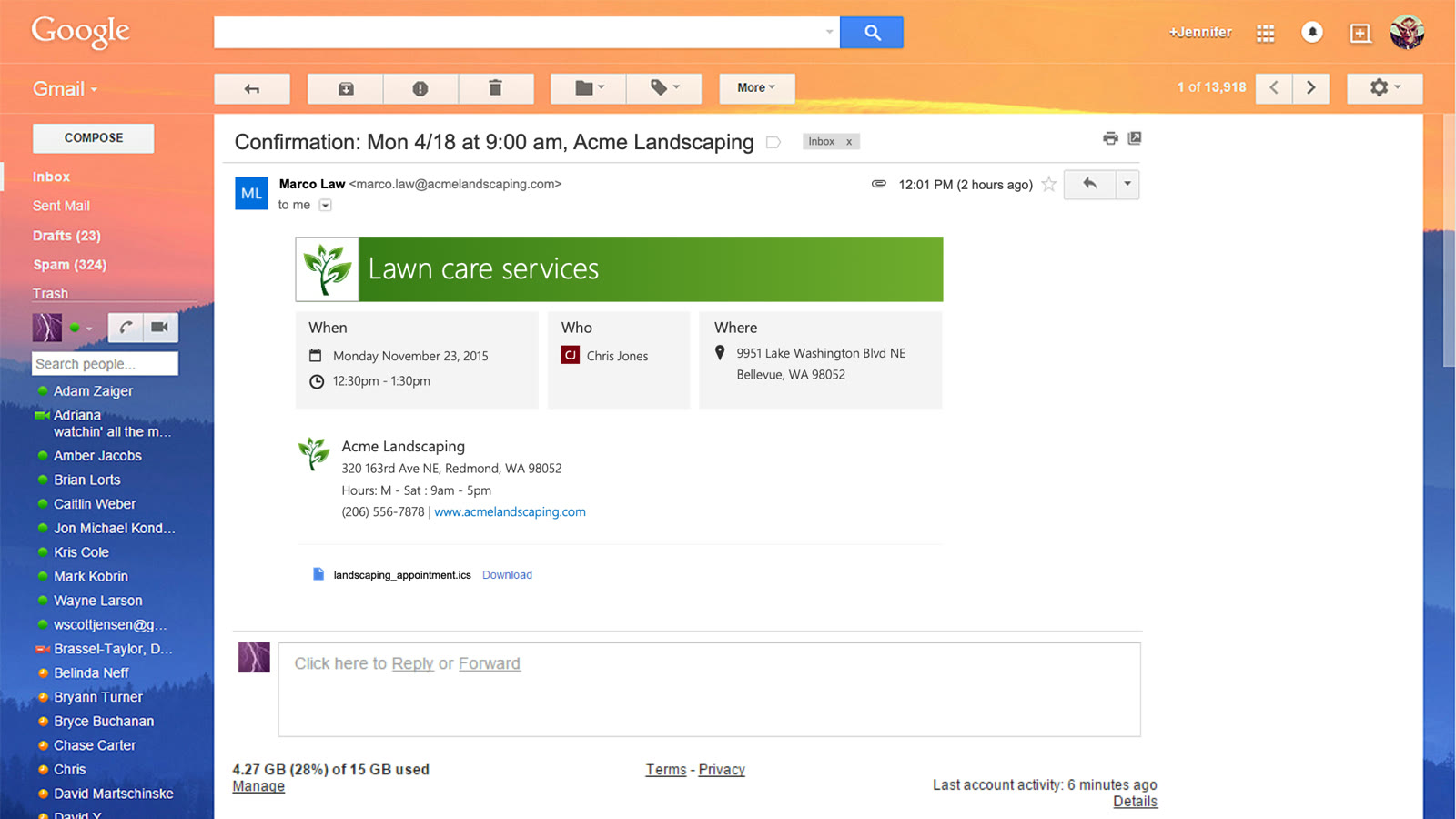
For email branding, I designed the booking emails businesses send their clients: a branded confirmation with add-to-calendar options, working in Outlook and in other mail apps like Gmail.
How I got there
Visiting small businesses
After the PM walked us through the original desktop experience, the researcher and I went on site to see how each business runs, what equipment they use, and whether staff work on site or in the field, and had them try wireframe prototypes.
- Who
- Two residential cleaning companies, a wedding photographer, a CrossFit gym, a fiber optics company and a family therapist, around Seattle and Everett.
- What we asked
- What matters on a busy booking calendar: who, what, or which service? Do you color or categorize bookings? Would you search, filter, or live in day view? What do you use today, and what's your biggest pain point?
- Pain points
- Staff without the latest appointments, client information scattered between paper and digital, and shared calendars that limit small teams who all need to edit.
- Wants
- Client information in one place linked to the booking, reminders by email or text for clients and staff, branded templates, and updates pushed to staff in the field.
From findings to flows
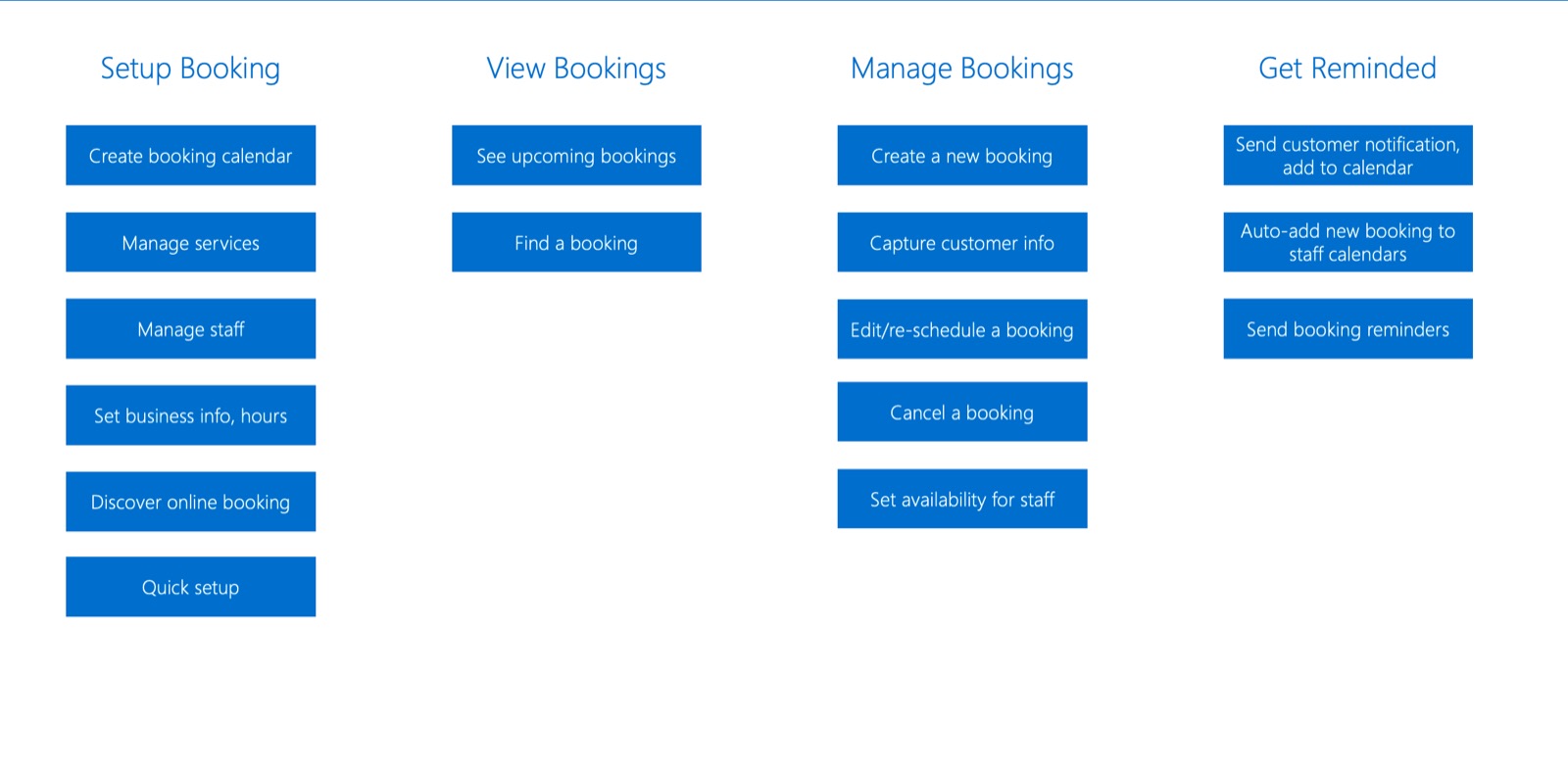
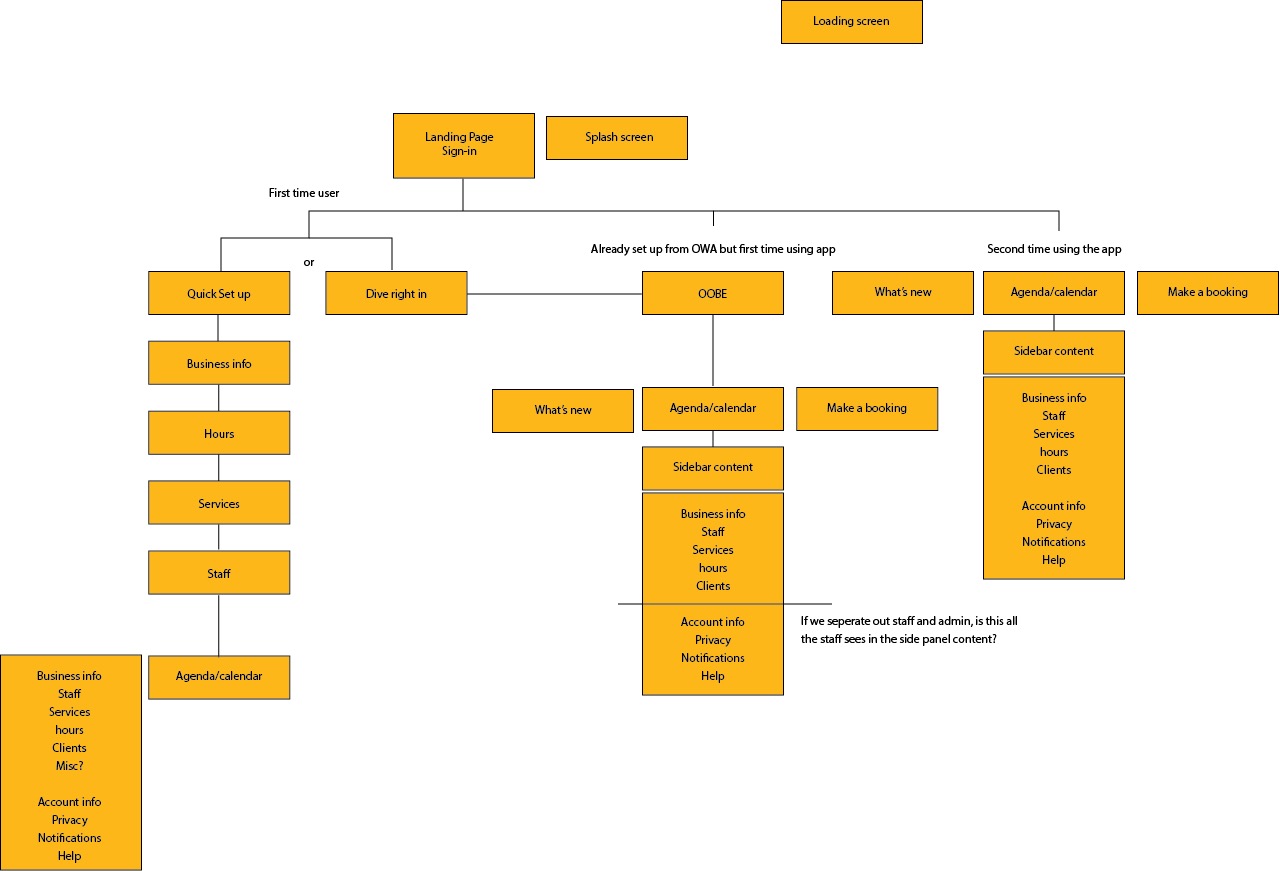
With the researcher, I grouped our findings into needs and patterns. I studied Timely, Square, LinkedIn, vCita, Packdog, Enhance, AppointmentPlus and TurboTax for functionality and interaction ideas, and mapped how Outlook on the desktop handles its framework and patterns. Then I defined the information architecture, interaction models, goals and business needs, and restructured the PM's original flow for mobile first.